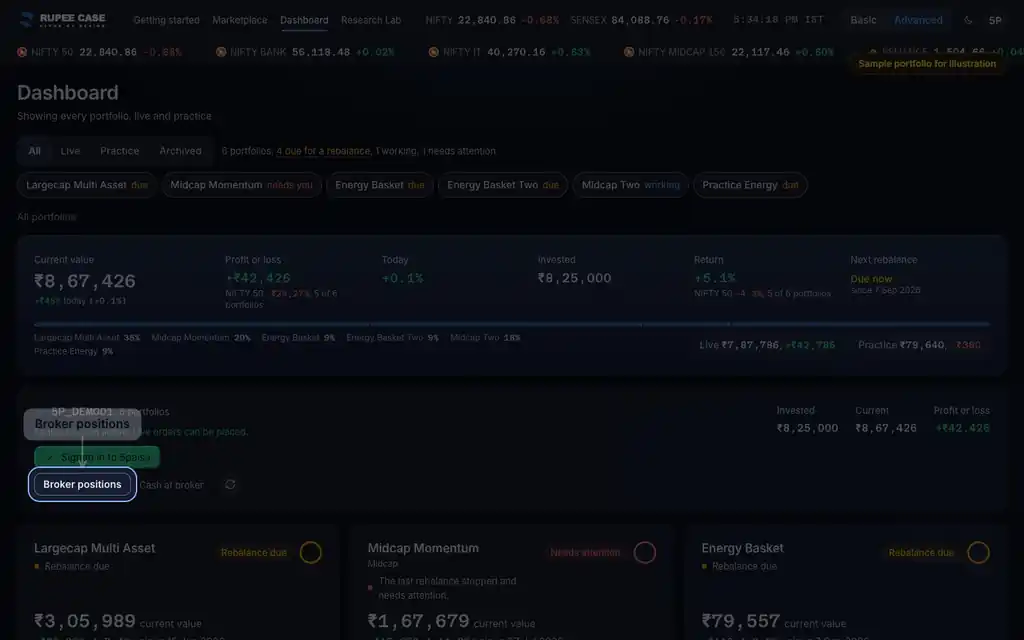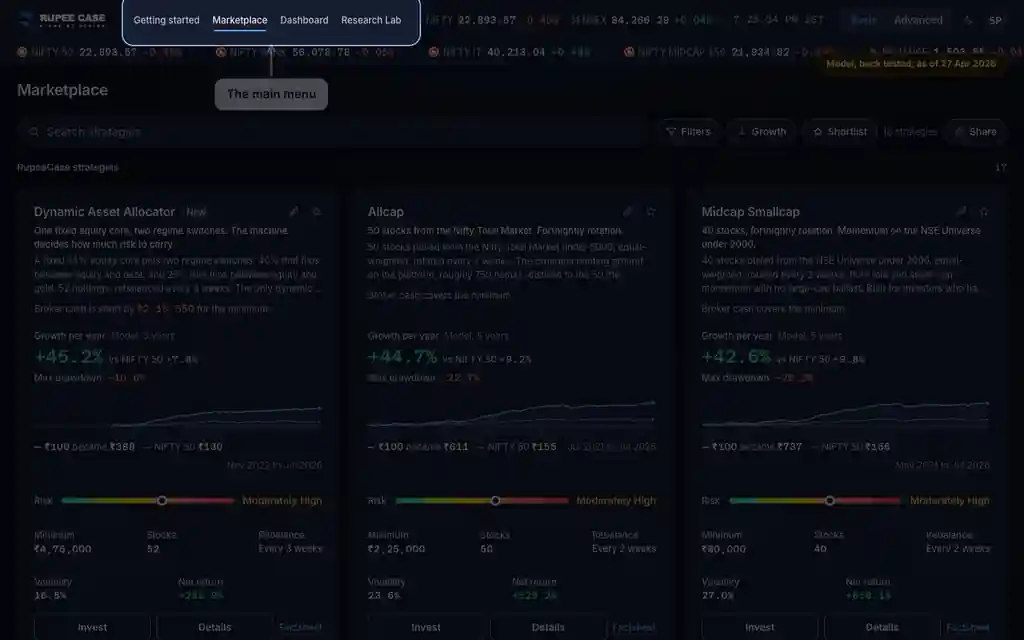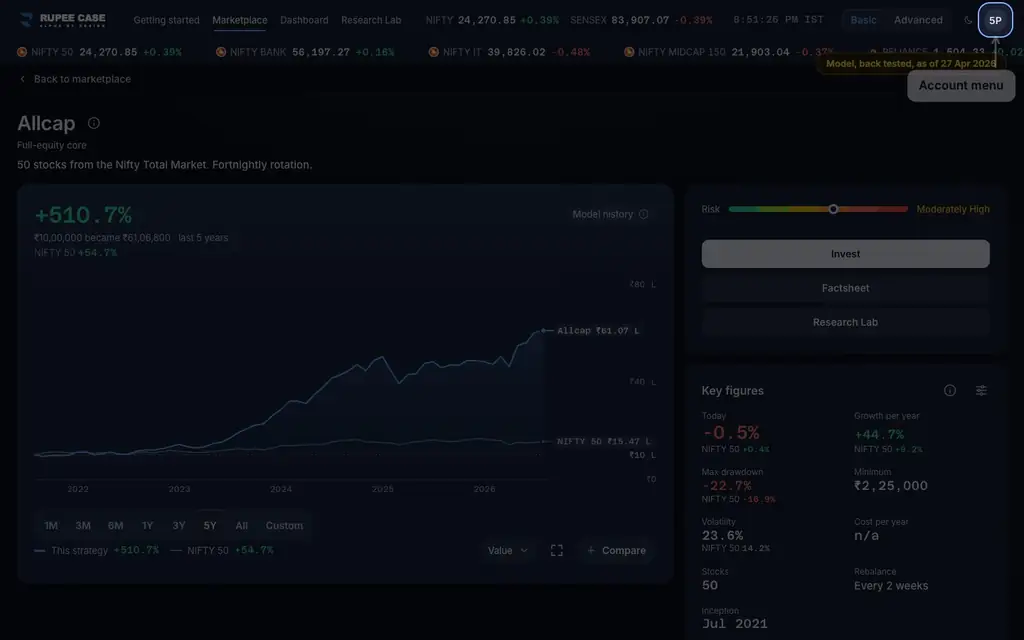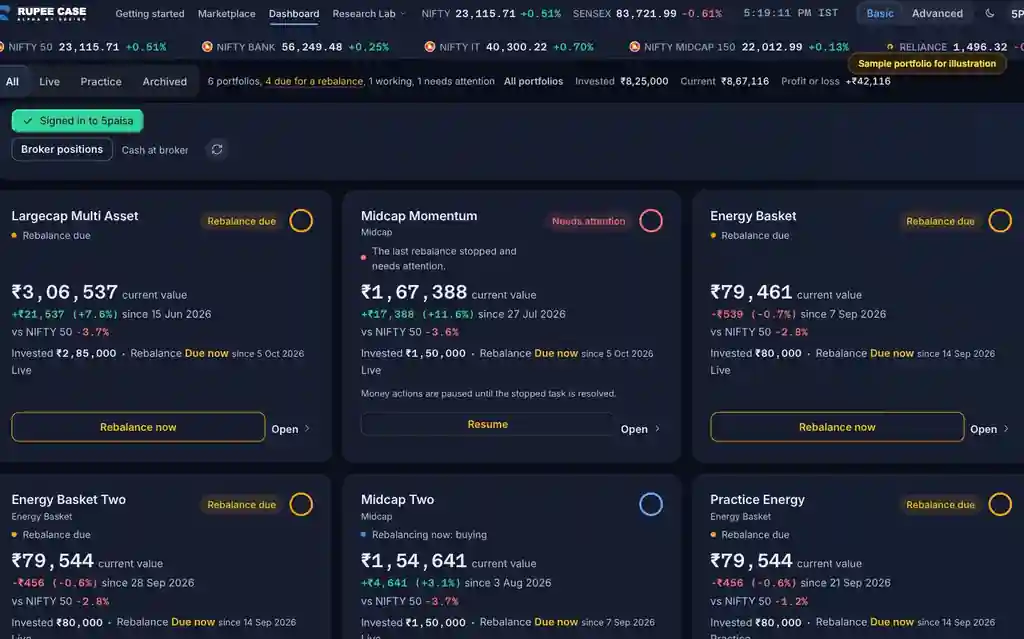



Where it is
ScreenEvery pageBasic
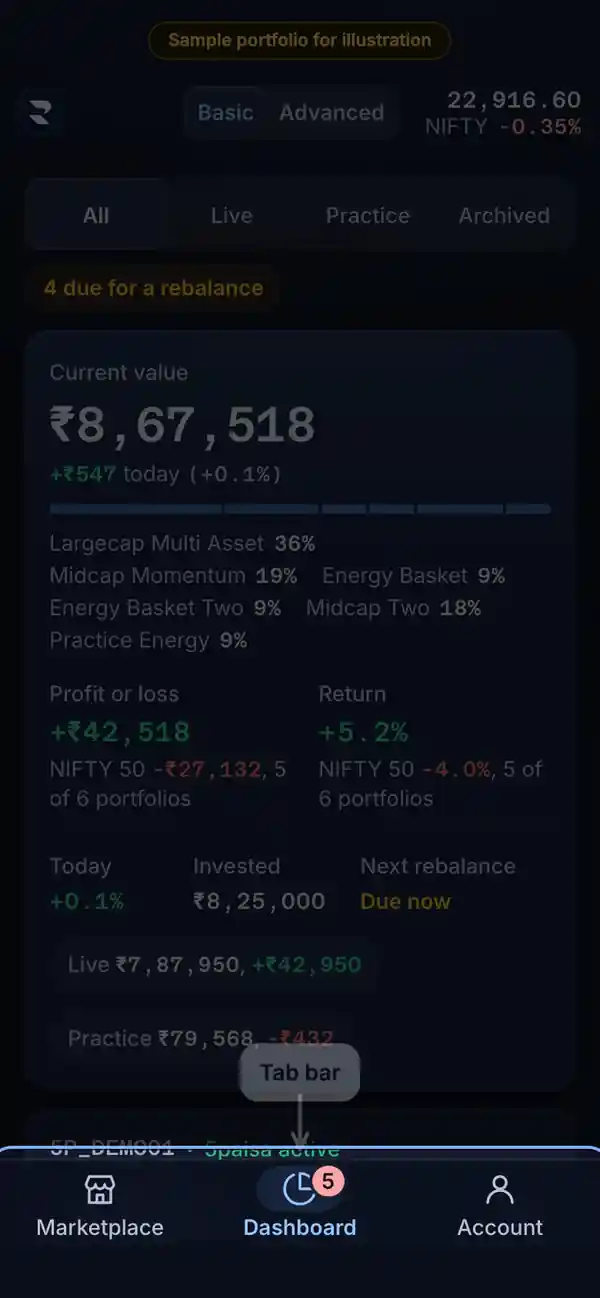
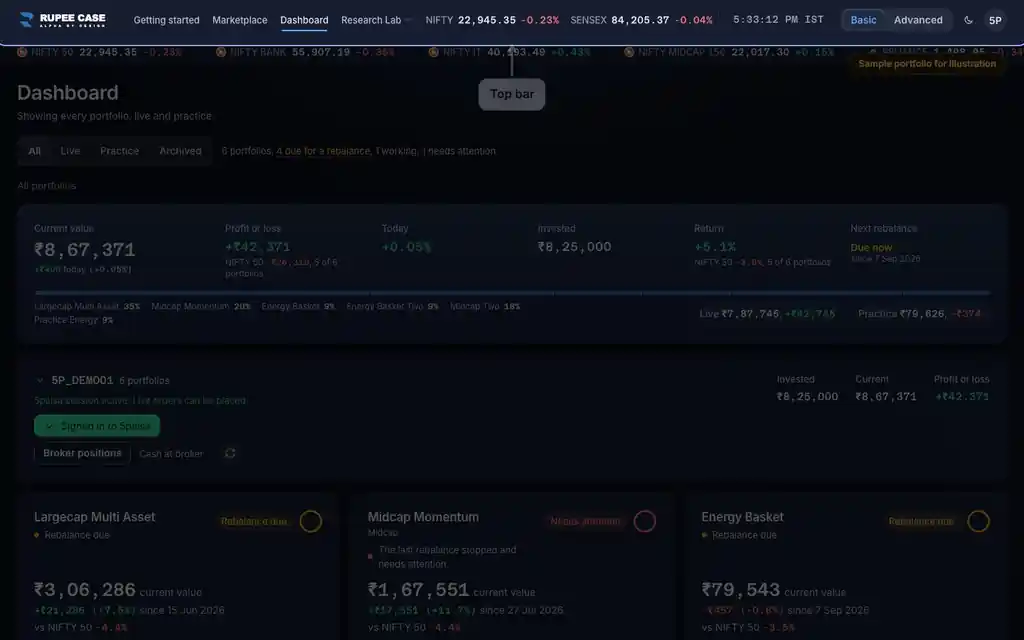
On a phone: the app bar at the top and the tab bar at the foot (Marketplace, Dashboard, Account). On a desktop (720 px and wider): the website's top bar. The Guide's Install chapter has the steps.
The app lists every RupeeCase index; each has its own page. See all 18 in one table.
What it means
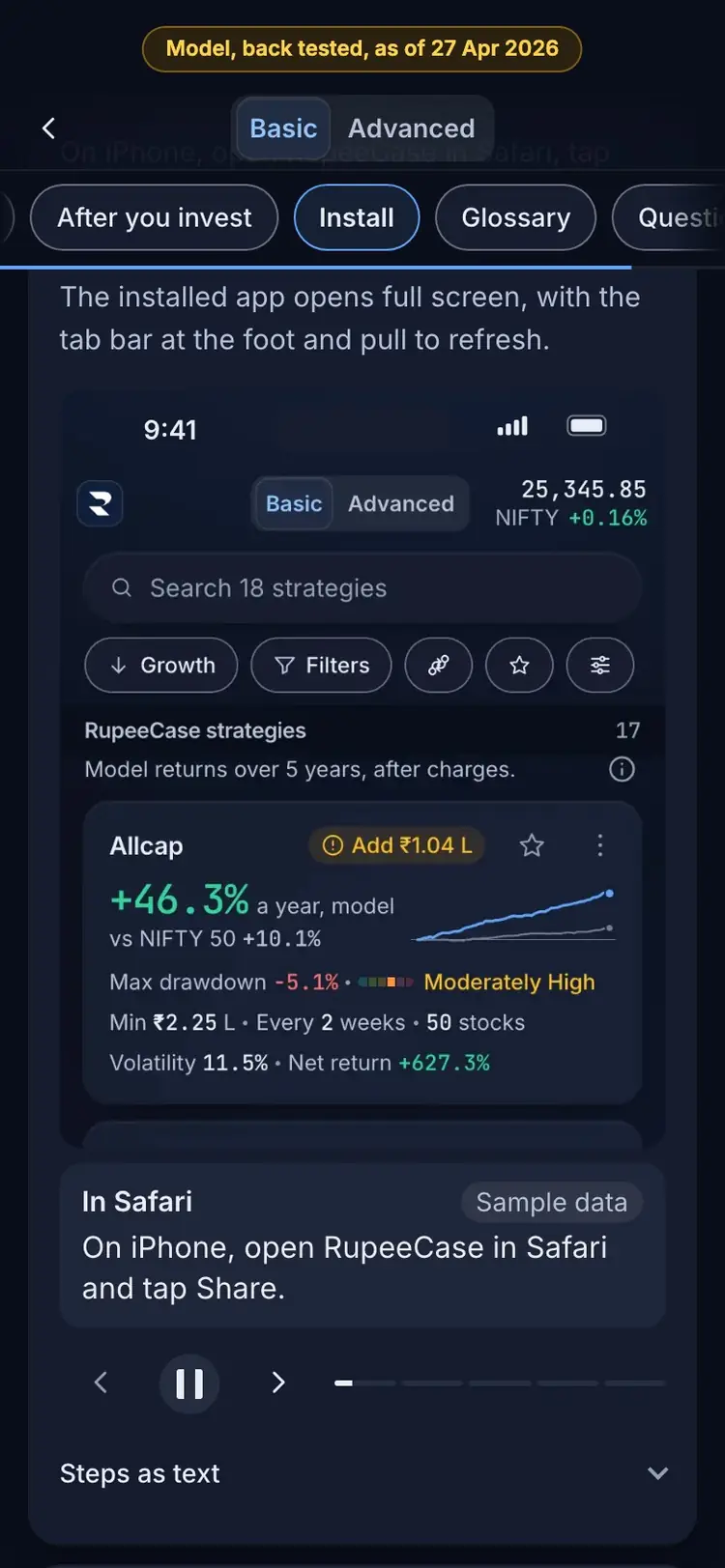
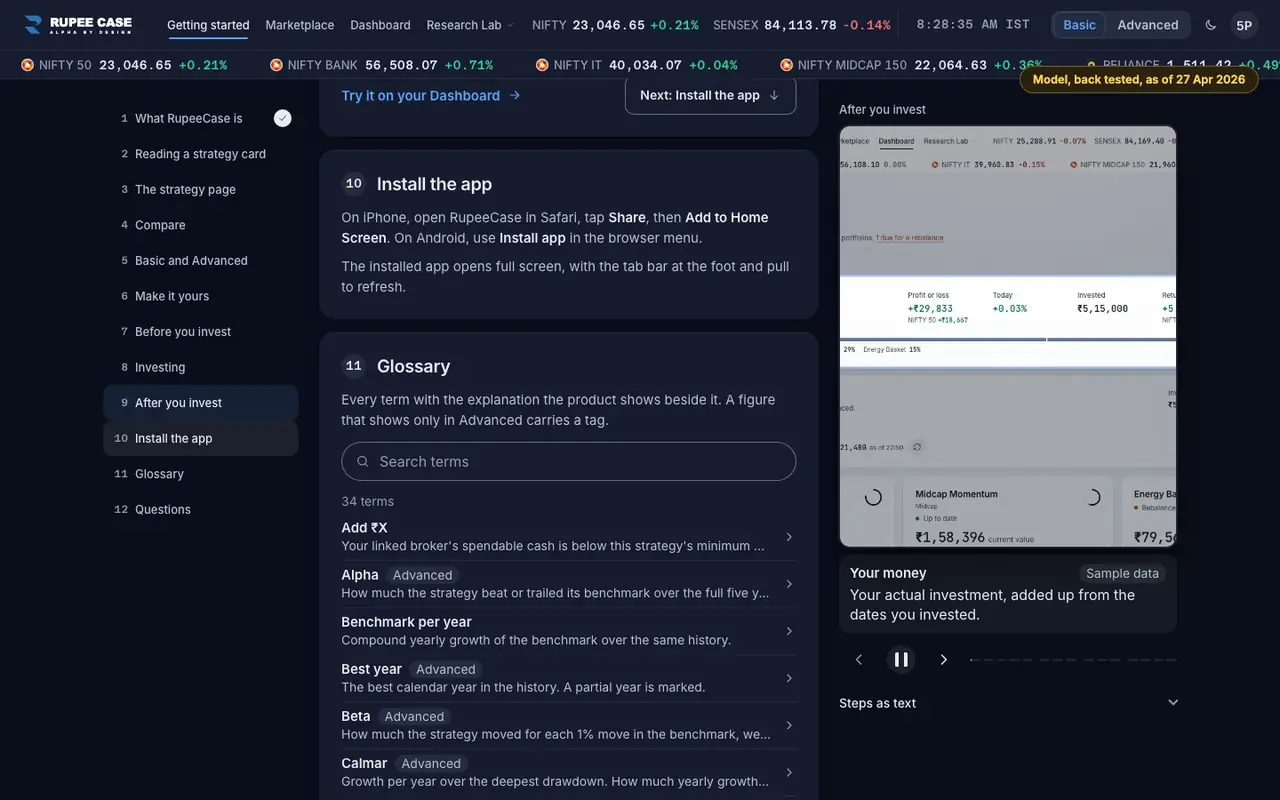
The terminal is one web app. On iPhone, open RupeeCase in Safari, tap Share, then Add to Home Screen. On Android, use Install app in the browser menu. The installed app opens full screen, with the tab bar at the foot and pull to refresh. Everything else is the same account and the same portfolios. On a phone, wide tables become stacked rows, the Dashboard tab carries the needs attention badge, and Customise is in the menu sheet; on a desktop, Customise is in the account menu and tables show as tables.
The formula
Under 720 px wide the phone layout shows; from 720 px the desktop layout. Settings in Customise are saved on each device.
Phone (under 720 px): app bar + tab bar (Marketplace, Dashboard, Account), badge on Dashboard
Installed from the home screen: full screen, pull to refresh
Desktop (720 px and wider): top bar, Customise in the account menu
Offline: "You are offline" until the connection returns
Worked example
Example only
- Phone: tap Share, then Add to Home Screen
- The RupeeCase icon opens the terminal full screen
- Desktop: the same portfolios, with tables and the top bar
How to read it
- A number on the Dashboard tab counts what needs you.
- Prices and portfolios need a connection; the app never works offline.
- Customise saves on each device; set it again on the other one.
Watch out
- There is no store app to download; install from the browser.
- Log out on a shared desktop; logging out also clears the app's saved files.
- Some buttons sit in different places: Customise, for one.
Transcript
Tap Sound on for voice and music. These are the captions of the video, chapter by chapter.
- 0:00Where it is. On a phone, the tab bar sits at the foot.
- 0:07What it means. iPhone: Safari, Share, Add to Home Screen. Android: Install app.
- 0:23Worked example. Worked example, example only: Phone: tap Share, then Add to Home Screen. The RupeeCase icon opens the terminal full screen. Desktop: the same portfolios, with tables and the top bar.
- 0:29How to read it. How to read it: A number on the Dashboard tab counts what needs you. Prices and portfolios need a connection; the app never works offline. Customise saves on each device; set it again on the other one.
- 0:35Watch out. Watch out: There is no store app to download; install from the browser. Log out on a shared desktop; logging out also clears the app's saved files. Some buttons sit in different places: Customise, for one.
Terms in this tutorial
- Install the appAdding RupeeCase to your phone's home screen from the browser, so it opens full screen like an app, with a tab bar and pull to refresh.
- Basic and AdvancedTwo views of the same app.